
Erupt Remote
erupt-remote bridges remote machines into the browser: VNC desktops rendered with noVNC, SSH shells with xterm.js, both over one WebSocket channel — no client-side tooling required.
Minimum version: 2.2.0
Security note
Remote access hands control of a machine to a browser tab. Grant it to trusted administrators only, and always run it over HTTPS/WSS in production.
Setup
<dependency>
  <groupId>xyz.erupt</groupId>
  <artifactId>erupt-remote</artifactId>
  <version>${erupt.version}</version>
</dependency>
Auto configuration adds a Remote Host (RemoteHost) table menu.
How it works
- Add a record in the Remote Host table with the address, port and protocol.
- Click the Connect row button to open the desktop or terminal page at the in-app route
/remote/{id}. - The server bridges a binary WebSocket (
/erupt-remote) to the host's port.
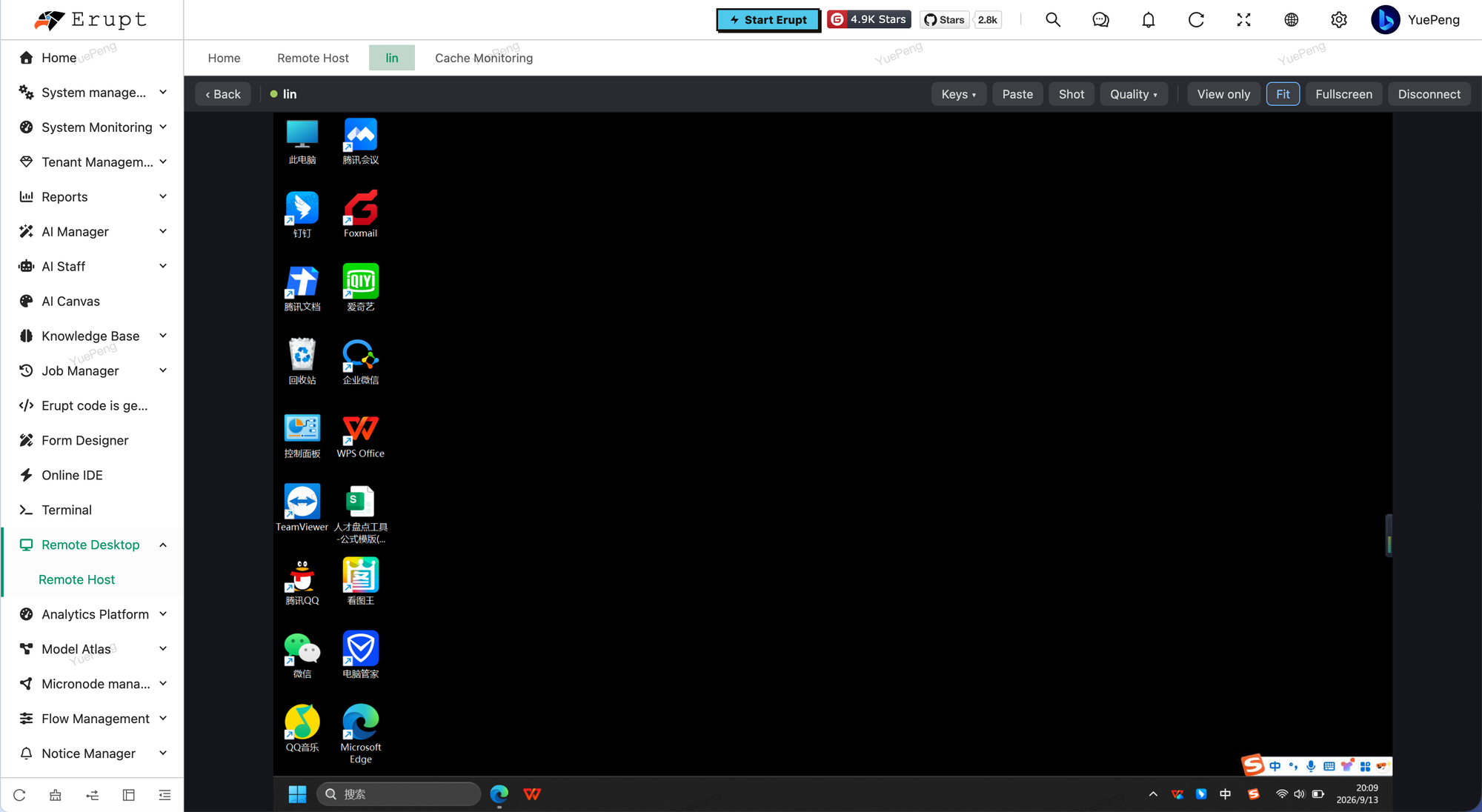
VNC desktop (Windows)
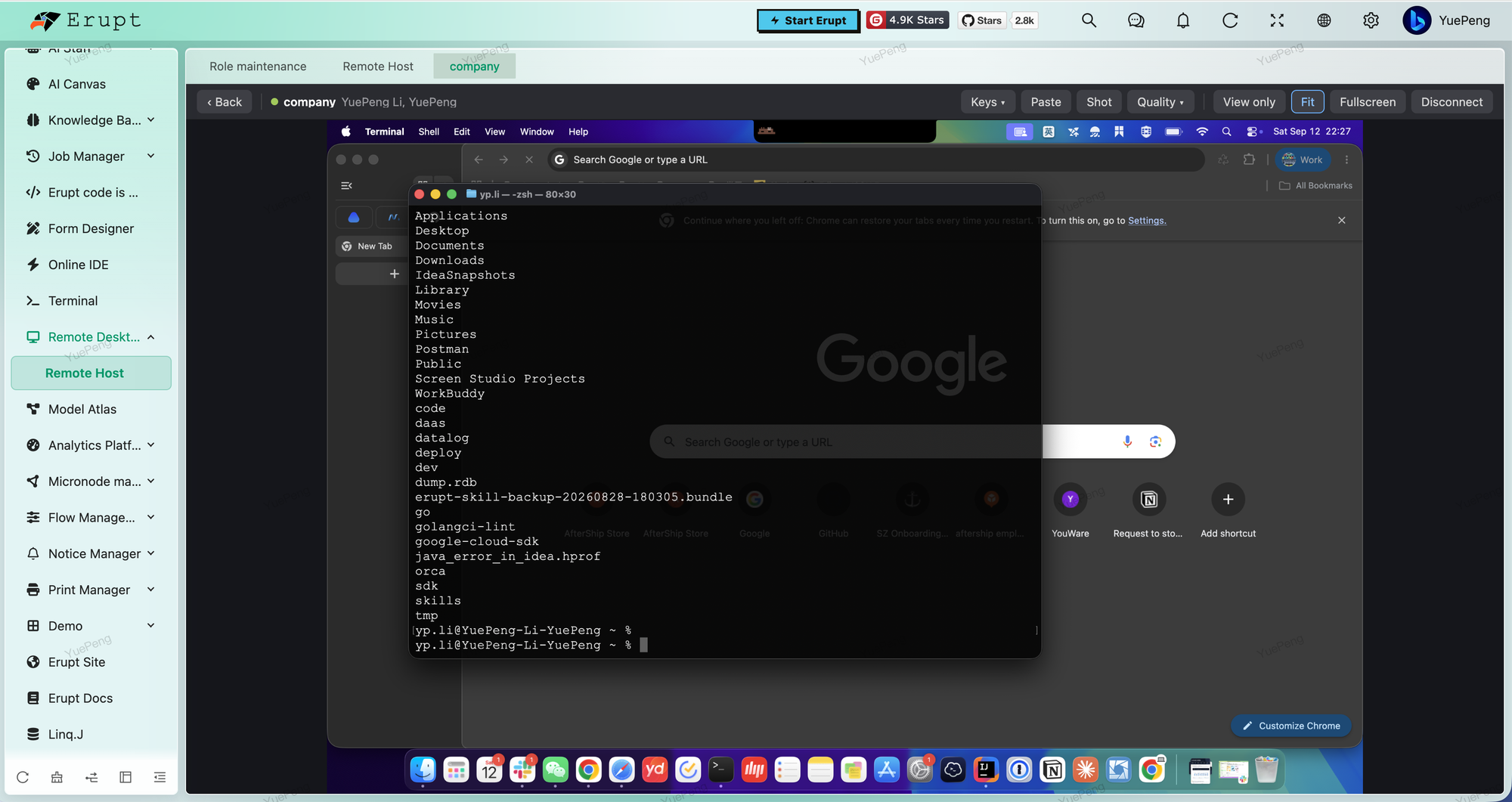
VNC desktop (macOS)
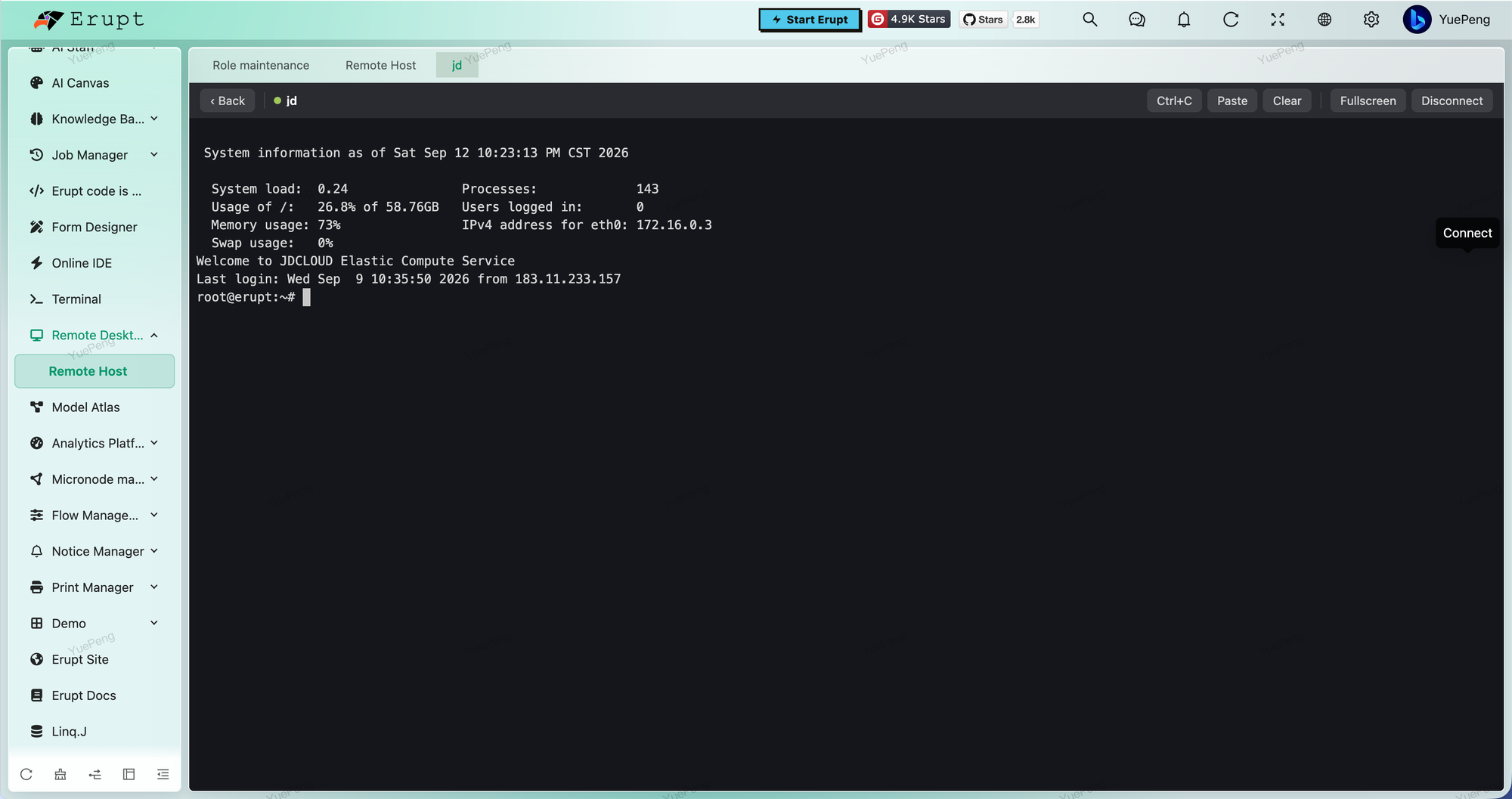
SSH terminal
Session Toolbar
The desktop and terminal pages share a toolbar along the top; a dot on the left shows the session state (connecting / connected / disconnected).
VNC desktop
| Button | What it does |
|---|---|
| Keys | Sends combinations the browser cannot pass through: Ctrl + Alt + Del, Alt + Tab, Tab, Esc, Print Screen |
| Paste | Sends the local clipboard to the remote desktop |
| Shot | Captures the current frame and downloads it |
| Quality | Bandwidth presets: Low bandwidth, Balanced, Best quality |
| Power | Remote power actions: Reboot, Reset, Shut down |
| View only | Watch without sending any input |
| Fit | Scale the frame to fit the window |
| Fullscreen | Go fullscreen |
| Disconnect | End the session; the button becomes Reconnect |
SSH terminal
| Button | What it does |
|---|---|
| Ctrl+C | Sends an interrupt to the remote process |
| Paste | Pastes the local clipboard |
| Clear | Clears the screen |
| Fullscreen | Go fullscreen |
| Disconnect | End the session; the button becomes Reconnect |
Host fields
| Field | Meaning |
|---|---|
| Host Name | Display name in the list |
| Protocol | VNC (desktop) or SSH (terminal) |
| Host | IP address or hostname reachable from the erupt server |
| Port | 5900 for VNC, 22 for SSH |
| Username | SSH login user, shown when the protocol is SSH |
| Password | VNC: the server password (first 8 characters are used). SSH: the login password, or the passphrase when a private key is set |
| Private Key | PEM private key for SSH public-key authentication; takes precedence over the password |
| Enabled | Disabled hosts cannot be connected |
Credentials are stored AES-GCM encrypted. The key comes from erupt.remote.secret-key, or is generated once into .erupt/remote.key when that is empty.
Security model
| Concern | How it is handled |
|---|---|
| Target address | Resolved server-side from the record id; the browser can never choose where the connection goes |
| Authorization | erupt-upms token + the RemoteHost menu permission (checked on the ticket API and again on the WebSocket) + a one-time ticket |
| VNC password | When a password is stored the server answers the RFB authentication itself, so the credential never reaches the browser. Without one (or against servers offering only other security types, e.g. macOS Apple Remote Desktop authentication) the handshake is relayed and noVNC prompts the user |
| SSH host keys | Trust on first use, recorded in .erupt/remote_known_hosts; a changed key is refused |
| Sessions | Global concurrency cap plus idle reaping |
Configuration
erupt:
  remote:
    # Credential encryption key; inject it from the environment.
    # Multi-node deployments must share one value across every node
    secret-key: ${ERUPT_REMOTE_SECRET_KEY}
    # Global concurrent session limit
    max-sessions: 20
    # Sessions without browser input for this long are closed (minutes)
    idle-timeout-minutes: 30
    # TCP connect timeout towards the remote host (seconds)
    connect-timeout-seconds: 5
Nginx
As with erupt-terminal, forward the WebSocket upgrade for /erupt-remote:
location /erupt-remote {
    proxy_pass http://backend;
    proxy_http_version 1.1;
    proxy_set_header Upgrade $http_upgrade;
    proxy_set_header Connection "upgrade";
    proxy_read_timeout 3600s;
}
Preparing the Target Host
erupt-remote is a VNC client: the target host must already run a VNC server (SSH just uses the system's own sshd, nothing to install). Any RFB 3.3 / 3.7 / 3.8 server works.
Windows: install a VNC server yourself
Windows ships no VNC server — its built-in Remote Desktop speaks RDP, which is a different protocol — so one has to be installed:
| Software | Download | Notes |
|---|---|---|
| TightVNC | tightvnc.com/download.php | Free and small, server included in the installer — the easiest start |
| UltraVNC | uvnc.com/downloads/ultravnc.html | Free, more features (file transfer, multi-monitor) |
| TigerVNC | github.com/TigerVNC/tigervnc/releases | Open source, cross-platform |
| RealVNC Server | realvnc.com/download/vnc | Commercial, with a free tier for personal use |
With TightVNC:
- Download the MSI for your architecture (
tightvnc-x.x.x-gpl-setup-64bit.msion 64-bit Windows). - Choose Typical during setup and keep the TightVNC Server component selected.
- The installer asks for a password — what you enter under Password for Remote Access is the password to put in the erupt host record.
- The server then runs as a Windows service on port 5900; right-click the tray icon → Configuration to change the password or port later.
- Allow inbound connections on port 5900 in Windows Defender Firewall (the installer usually offers to add the rule).
Only the first 8 characters of a VNC password count
That is a limit of the RFB protocol itself, not of erupt. Keep the password to 8 characters to avoid the "I set a long password and it won't connect" puzzle.
macOS: turn on the built-in Screen Sharing
macOS has a VNC server built in; it only needs to be enabled for password access:
- Open System Settings → General → Sharing (older releases: System Preferences → Sharing).
- Turn on Screen Sharing.
- Click the ⓘ button next to it → Computer Settings….
- Tick "VNC viewers may control screen with password" and set a password (again, only the first 8 characters count).
- Make sure the Allow access for list includes the account you intend to use.
Then fill the host record with the Mac's IP, port 5900, and that VNC password.
Without a VNC password
Skip step 4 and macOS offers only Apple Remote Desktop authentication. The server cannot answer that on your behalf, so erupt relays the handshake and noVNC prompts in the browser for the macOS username and password — the connection still works, the credentials are simply not held server-side.
Linux: x11vnc or TigerVNC
- Share the existing physical desktop:
x11vnc, e.g.sudo apt install x11vnc, thenx11vnc -display :0 -rfbauth ~/.vnc/passwd -forever(x11vnc -storepasswdwrites the password file). - Start a separate virtual desktop:
tigervnc-standalone-server— set a password withvncpasswd, runvncserver :1, and the port is5901(5900 + display number).
For pure command-line work, use the SSH protocol instead — no VNC server needed at all.
How this differs from erupt-terminal
erupt-terminal opens a shell on the host running erupt itself; erupt-remote connects to other managed machines, kept as records, authorized through a menu, and able to show a graphical desktop. Full comparison: erupt-terminal → How This Differs from erupt-remote.
Contributors
 YuePeng
 Claude Opus 5 (1M context)